Install Lean 3 on Windows
Last updated on November 12, 2023 pm
Install Lean 3 on Windows
If you follow the official installation guide on Windows, Lean 4 will be installed automatically. However, if you want to install Lean 3 on Windows, you can follow the steps below.
These should be the minimum steps and I will try to keep them as clear as possible.
Prerequisites
I assume you have Visual Studio Code installed. (And possibly a web browser 🤷)
1. Download the latest release
Head to the Lean 3 repository on GitHub, find the latest release, and download the lean-<version>-windows.zip file.
At the moment, the latest release is Release v3.51.1, so I will download lean-3.51.1-windows.zip.
There may be a warning that says “This file is not commonly downloaded and may be dangerous”, I’m not sure why, but just keep downloading it. It should be safe as long as you are downloading it from the official repository.
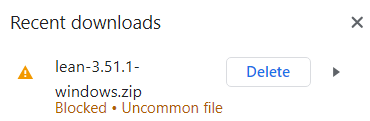
Lean 3 is no longer officially maintained, the version we downloaded here is the community one.
If you want to get the last official version, which was released in 2019, you can download it from Release v3.4.2 · leanprover/lean3, the rest of the steps should be the same.
2. Unzip the file
Unzip the downloaded file to a directory of your choice. There should be three folders: bin, include, and lib respectively.
I stored them on my D drive, and also renamed the folder to lean. So now I have D:\lean\bin, D:\lean\include, and D:\lean\lib.
Optionally, you can test the lean.exe in the bin folder by running .\lean.exe --version in a command prompt or PowerShell:
1 | |
3. Add the path to the environment variables
Add the path to the bin folder to the PATH environment variable.
- On the lower left Start menu or search bar, type
envand select Edit the system environment variables. - On the pop-up window, click the bottom right button Environment Variables….
- On the System variables section, scroll down and find the
pathvariable and double click it. - On the pop-up window, click the New button. You will need to input the path to
lean‘sbinfolder (Better to copy and paste it from the file explorer). In my case, it isD:\lean\bin. - Click OK on all the pop-up windows to save the changes.
This change may take a few minutes to take effect (and terminals will not recognize lean until you close and reopen them), or you can simply restart your computer to make sure it works.
4. Test the installation (optional)
Open a new command prompt or PowerShell window, and run lean --version again:
1 | |
5. Install the Lean extension for VS Code
At this point, you can use Lean 3 from the command prompt or PowerShell. However, if you want to use Lean 3 in VS Code, you will need to install the Lean extension for VS Code.
Open VS Code, navigate to the Extensions tab, and search for lean. Most of the time, the first result should be what we want. Click the Install button to install it.

The extension is supposed to find the installed Lean 3 automatically.
6. Done!
Up to now, the vanilla Lean 3 installation is done.
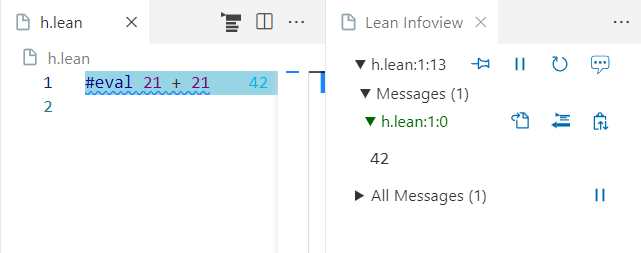
Create a new file with extension .lean, and you should see the Lean logo on the bottom-right corner of the window. Click it to start the Lean server if needed.
Try some basic Lean code:
1 | |
or
1 | |
The Lean Infoview window should pop up to provide plenty of information about the code, including the result.
7. Add project manager and package manager
However, if you want to use importation in Lean 3, for example import tactic, it is rather difficult to configure.
Lean 3 uses leanproject as the project manager and leanpkg as the package manager.
7.1. Get leanproject
The leanproject is written in Python and can be installed using pip.
- Have Python 3 installed (Python 3.7 or later is recommended);
- Have
pipinstalled by runningpython -m pip install --upgrade pipin a command prompt or PowerShell (pythonorpython3doesn’t matter, as long as it is your desired version from the last step); - run
pip3 install mathlibtoolsto installleanproject;
It is quite weird that the leanproject has name mathlibtools on PyPI, but it is the correct one.
Check the installation by running leanproject --version:
1 | |
For your information, here is the (outdated) official Lean 3 mathlib installation guide: Installing mathlib supporting tools.
7.2. Create a new Lean 3 project
Features such as importation is only available in Lean 3 projects. To create a new Lean 3 project, run leanproject new <project-name> in a command prompt or PowerShell.
Now go to a desired directory to create a new Lean 3 project. I will use E:\Code\Lean as an example. If you cannot get results similar to the following, proceed to 7.3. Troubleshooting.
1 | |
From this output, we can see a few things:
- Initialized a new Lean project with
git; - Cloned the whole
mathlibrepository; - Added
mathlibas a dependency; - Load specified version pre-compiled
mathlib(oleanfiles);
If every thing looks fine, we can now open the project in VS Code and start enjoying full-powered Lean 3.
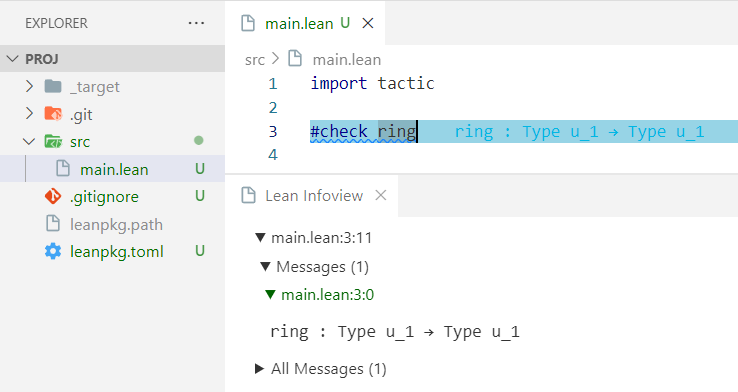
7.3. Troubleshooting
In most cases, things won’t go so smoothly. If you failed to get the above output, for example:
1 | |
Here we directly head to resolve the issue, some thoughts over it could be found at 8. Appendix.
In side the leanproject, leanpkg is actually called for help, so we first verify that leanpkg is installed correctly. Run leanpkg --version:
1 | |
This should be runnable no matter what version of Lean 3 you are using, e.g., v3.4.2 or v3.51.1. If not, double check your footprint from step 1 to step 3.
Navigate to the bin folder of lean (here it is D:\lean\bin), create a new file named leanpkg.c with the following content:
1 | |
Compile it with output leanpkg.exe:
1 | |
Now retry 7.2. Create a new Lean 3 project and it should work.
Here, we are basically cheating the python interpreter, see below for more details.
8. Appendix
Here are short explanations and some thoughts over the installation process.
8.1. Causes
If we run leanproject with debug flag, the error stack is quite horrifying:
1 | |
We can see that the error is caused by subprocess.run(['leanpkg', 'new', str(path)], check=True) in mathlibtools/lib.py, and almost everywhere calling leanpkg will cause the same error.
Source: mathlib-tools/mathlibtools/lib.py at master · leanprover-community/mathlib-tools
To abstract away irrelevant details, we can simplify the code to:
1 | |
Running it will cause the same error that we got from leanproject:
1 | |
And if we change it from leanpkg to leanpkg.bat, the snippet will work:
1 | |
This is what happened: under the bin folder of lean, we can see that there are two leanpkg files: leanpkg and leanpkg.bat. The first one is a shell script (not sure why put a shell script in a Windows release), and the second one is CMD batch script. When we run leanpkg --version on the command prompt or PowerShell, Windows is smart enough to run the batch script. This can be verified by running Get-Command leanpkg in PowerShell, and the output will specify which file is used for the command.
| CommandType | Name | Version | Source |
|---|---|---|---|
| Application | leanpkg.bat | 0.0.0.0 | D:\lean\bin\leanpkg.bat |
Both Get-Command leanpkg and Get-Command leanpkg.bat will return the same result.
However, when we run it in Python, it will try to find an executable exactly named as leanpkg, and it will fail. It can only success to it when we specify the extension leanpkg.bat.
8.2. Solutions
So the solution is quite simple, we can either:
- Change the Python source code to use
leanpkg.batinstead ofleanpkg; - Make a kind of mapping or alias that maps
leanpkgtoleanpkg.bat; - Create a new executable named
leanpkgthat callsleanpkg.batunder the hood;
The first solution is quite straightforward, but modifying the source code might cause unexpected issues, and there are many places to modify.
The second solution may work, but in real experiment, techniques such as symbolic link or hard link do not help.
The Third solution, as what we did in 7.3. Troubleshooting, is to create a new executable named leanpkg.exe that passes everything to leanpkg.bat. A little bit tricky.
8.3. Questions
Even though this is a feasible way, I still not sure why the procedure would go so painful.
The leanproject (or mathlibtools) was marked obsolete just on August this year, and its CI tested on all major platforms, including Windows, with different Python versions from 3.7 to 3.11. There is no reason that it would be broken so soon.
And also, the transition from Lean 3 to Lean 4 sucks. The official site becomes a mixture of them, and toolchains’ documentation nearly not exist.
References
- Installing Lean 4 on Windows
- Installing Lean 3 and mathlib on Windows
- leanprover-community/lean: Lean Theorem Prover
- Lean community
- How to: Add Tool Locations to the PATH Environment Variable | Microsoft Learn
- lean - Visual Studio Marketplace
- leanprover/vscode-lean: Extension for VS Code that provides support for the older Lean 3 language. Succeeded by vscode-lean4 (‘lean4’ in the extensions menu) for the Lean 4 language.
- 1. Using Lean — The Lean Reference Manual 3.3.0 documentation
- The Lean tool chain
- Using leanproject
- mathlibtools · PyPI
- leanprover-community/mathlib-tools: Development tools for https://github.com/leanprover-community/mathlib
- leanprover-community/mathlib: Lean 3’s obsolete mathematical components library: please use mathlib4